

Last updated: June 7, 2026
The Short Version: Most B2B teams don’t fail at marketing because they lack ideas. They fail because nobody owns the system. This guide gives you a framework for structuring all your marketing work, then shows you exactly how to build it inside ClickUp with Spaces, Folders, Lists, and tasks. You’ll also get a walkthrough of the AI features that cut admin time in half. Copy the structure. Assign the tasks. Run the system.
Managing marketing tasks starts with building a system, not picking a tool. Structure your work into four levels (strategy, channels, campaigns, tasks), then use a platform like ClickUp to assign owners, set deadlines, track progress, and automate the repetitive stuff.
You know that feeling when you open your laptop on Monday and can’t remember what’s supposed to happen this week? There’s a Slack thread from Friday about a blog post. An email about paid ads that you forgot to reply to. Someone mentioned a webinar landing page, but you’re not sure if it’s your job or theirs.
That’s not a marketing systems problem. That’s a structural one.
I manage marketing for multiple B2B companies as a fractional CMO. And the pattern is almost always the same when I walk into a new engagement. The team has ideas. They have tools. Sometimes they even have budget. What they don’t have is a single place where all the marketing work lives, gets assigned, and gets tracked. So every week starts from scratch. And nothing compounds.
This post is the fix. I’ll give you the framework first, then show you exactly how to build it in ClickUp step by step.
Why Are Most B2B Marketing Teams Drowning in Tasks?
They’re not drowning in complexity. They’re drowning in disorganization. When there’s no single source of truth for who’s doing what by when, marketing effort resets every week instead of building on itself.
The numbers back this up. Asana’s Anatomy of Work Index found that teams spend 60% of their time on “work about work.” Status updates. Searching for files. Figuring out what to do next. Not actually doing the work. A separate time management study from Speakwise put it even more bluntly: the average worker spends 51% of their workday on tasks that deliver little to no value.
I’ve seen this firsthand. One B2B client I onboarded had marketing tasks spread across Google Sheets, Slack threads, email chains, a Trello board nobody checked, and a whiteboard in their office. Five systems. Zero accountability. The founder couldn’t tell me what had been published in the last 30 days without digging through four tools.
That’s not unusual. That’s the default for most companies under $10M.
The fix isn’t “be more organized.” The fix is building a structure that makes disorganization impossible.
The Marketing Task Framework (Build This Before You Touch a Tool)
Here’s where most advice on this topic goes wrong. Every article jumps straight to “pick a project management tool.” But the tool doesn’t matter if you haven’t decided how your marketing work is structured.
I use a four-level framework with every client. It takes about 20 minutes to map out. And once it exists, setting up any tool becomes easy because you already know what goes where.

Level 1: Strategy
This is the quarterly layer. What are the 2–3 marketing goals for this quarter? What’s the budget? What KPIs are you tracking? For a B2B company doing $2M–$10M in revenue, this might look like “generate 15 SQLs per month from organic channels” or “launch a content workflow that produces 8 pieces per month.”
This layer doesn’t change weekly. It sets the direction.
Level 2: Channels
These are the marketing functions you’re actually running. SEO. LinkedIn. Email nurture. Paid ads. Partnerships. YouTube. For most lean B2B teams, it’s 3–4 channels max.
Each channel gets its own container in your task system. Not mixed together. Separated.
Level 3: Campaigns and Projects
Inside each channel, you have time-bound work. A blog series. A webinar. A LinkedIn outreach campaign. A landing page redesign. These are the projects that have a start date, an end date, and a set of deliverables.
Level 4: Tasks and Subtasks
The actual to-dos. “Write the blog post.” “Design the social graphic.” “Set up the email sequence.” “Review and approve the landing page.” Each task has one owner, one deadline, and a clear definition of done.
This framework maps directly to how ClickUp is built. Which makes the next step painless.
How to Set Up ClickUp for Marketing Task Management (Step by Step)
ClickUp’s hierarchy is Workspace, Spaces, Folders, Lists, Tasks. That’s five levels. You won’t use all of them for everything, but understanding the structure matters before you start building.
Here’s exactly how ClickUp recommends organizing for marketing teams, and how I adapt it for B2B companies.
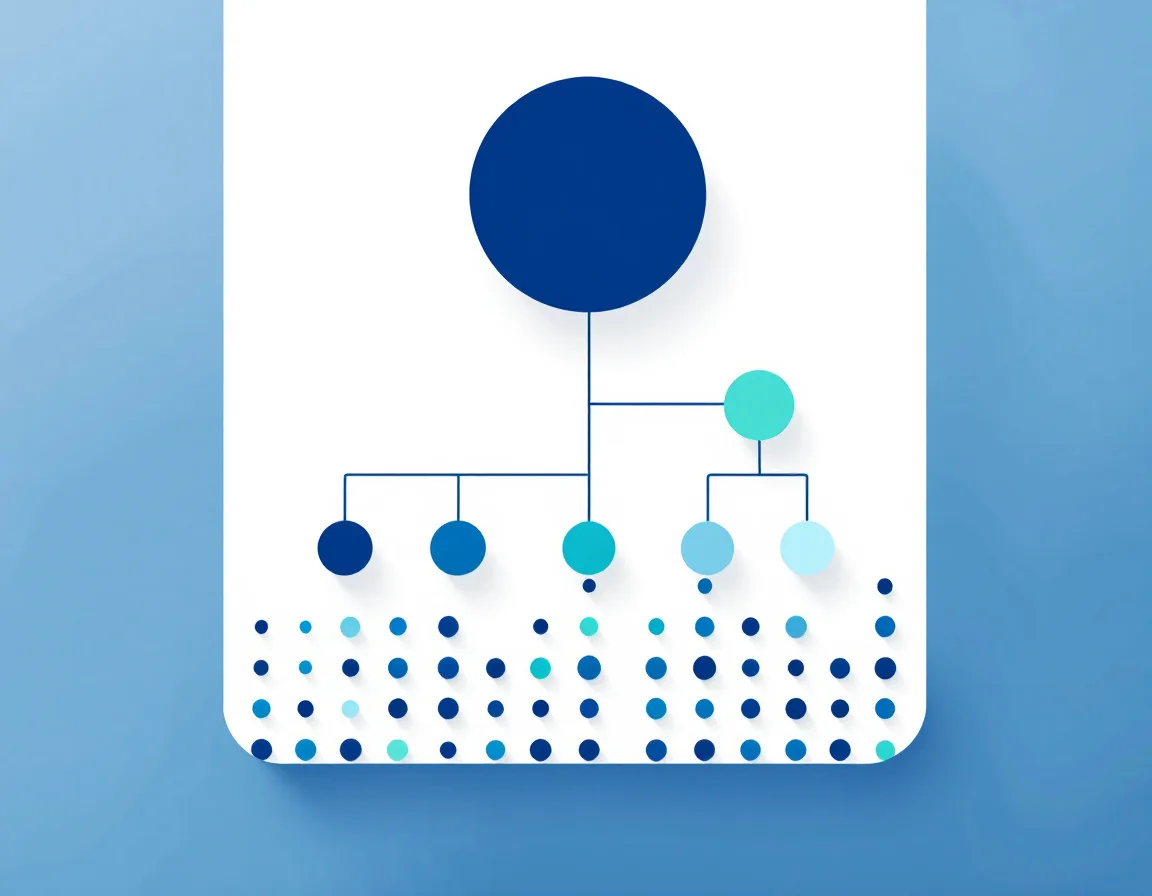
Setting Up Your Marketing Space
Your Space is the top-level container. Create one called “Marketing.” This is where all marketing work lives.
Inside the Space settings, you’ll configure a few things right away. Set your custom statuses. For marketing work, I use these five:
- Open (not started)
- In Progress (someone’s working on it)
- In Review (waiting for approval)
- Approved (ready to publish or ship)
- Complete (done and live)
That’s it. Five statuses. Don’t overthink this. You can always add more later, but starting with fewer prevents confusion.
Set the Space to private or shared depending on your team. If you’re a founder managing an offshore marketer and a fractional CMO, share it with all three. If you have contractors who only need to see their channel, use Folder-level permissions instead.
Organizing Folders by Channel or Function
Inside your Marketing Space, create one Folder per channel or function. For a typical B2B company I work with, that looks like this:
| Folder | What Goes Inside |
|---|---|
| Content Marketing | Blog posts, guides, lead magnets, SEO work |
| Organic posts, outreach campaigns, engagement tracking | |
| Email Marketing | Nurture sequences, newsletters, one-off sends |
| Campaigns | Time-bound multi-channel campaigns (launches, promos, events) |
| Brand & Creative | Design assets, brand guidelines, website updates |
Some teams won’t need all five. A company running only content and LinkedIn would have two Folders. That’s fine. Don’t create Folders for channels you aren’t actively working.
Quick rule of thumb from ClickUp’s own hierarchy documentation: keep your hierarchy to 2–3 levels deep max. If you’re nesting Folders inside Folders, you’ve gone too far.
Building Lists for Projects and Workflows
Lists live inside Folders. Each List represents a specific project, workflow, or ongoing workstream.
Inside your Content Marketing Folder, you might have:
- Blog Production (ongoing list for all blog posts moving through the pipeline)
- SEO Audit Tasks (one-time or quarterly project)
- Lead Magnet Development (specific project with a defined end date)
Inside your LinkedIn Folder:
- Weekly Post Schedule (recurring weekly tasks)
- Outreach Campaign Q3 (time-bound project)
Here’s where ClickUp gets powerful. Each List can have its own custom fields. For a Blog Production list, add custom fields for Target Keyword, Author, Publish Date, and Status. For an Outreach Campaign list, add fields for Prospect Name, Connection Status, and Follow-Up Date.
Those custom fields turn a simple task list into a database. And that database is what makes reporting and filtering possible later.
Creating Tasks and Assigning to People
Every task needs three things. An owner. A deadline. A clear description of what “done” looks like.
In ClickUp, creating a task takes about 10 seconds. Click “+ Add Task” inside any List, give it a name, assign it to someone, set a due date. Done.
But here’s where it gets useful for marketing teams specifically:
Subtasks vs. checklists. Use subtasks when the sub-items need their own owner, deadline, or status tracking. Use checklists for simpler step-by-step items where you just need to check things off. Writing a blog post? The main task is “Write Blog: How to Manage Marketing Tasks.” Subtasks might be “Research + Outline,” “First Draft,” “Images + Alt Text,” and “Final Review.” Each subtask gets its own assignee and due date.
Recurring tasks. Set up recurring tasks for weekly or monthly marketing work. “Publish LinkedIn posts” every Monday. “Send newsletter” on the first Tuesday of each month. “Run SEO keyword check” quarterly. ClickUp handles the recurrence automatically. The task reappears on schedule so nothing slips.
Dependencies. If Task B can’t start until Task A is finished, link them. ClickUp will flag blocked tasks automatically. For content workflows, this is huge. You can’t design the social graphic until the blog post is written. Set the dependency and the designer gets notified the moment the draft is approved.
Priority flags. I use ClickUp’s built-in priority system (Urgent, High, Normal, Low) but only tag Urgent and High. If everything is flagged urgent, nothing is. Discipline here matters.
Views That Actually Help
ClickUp gives you 15+ views. You don’t need all of them. Here are three that work for every marketing team I’ve set up:
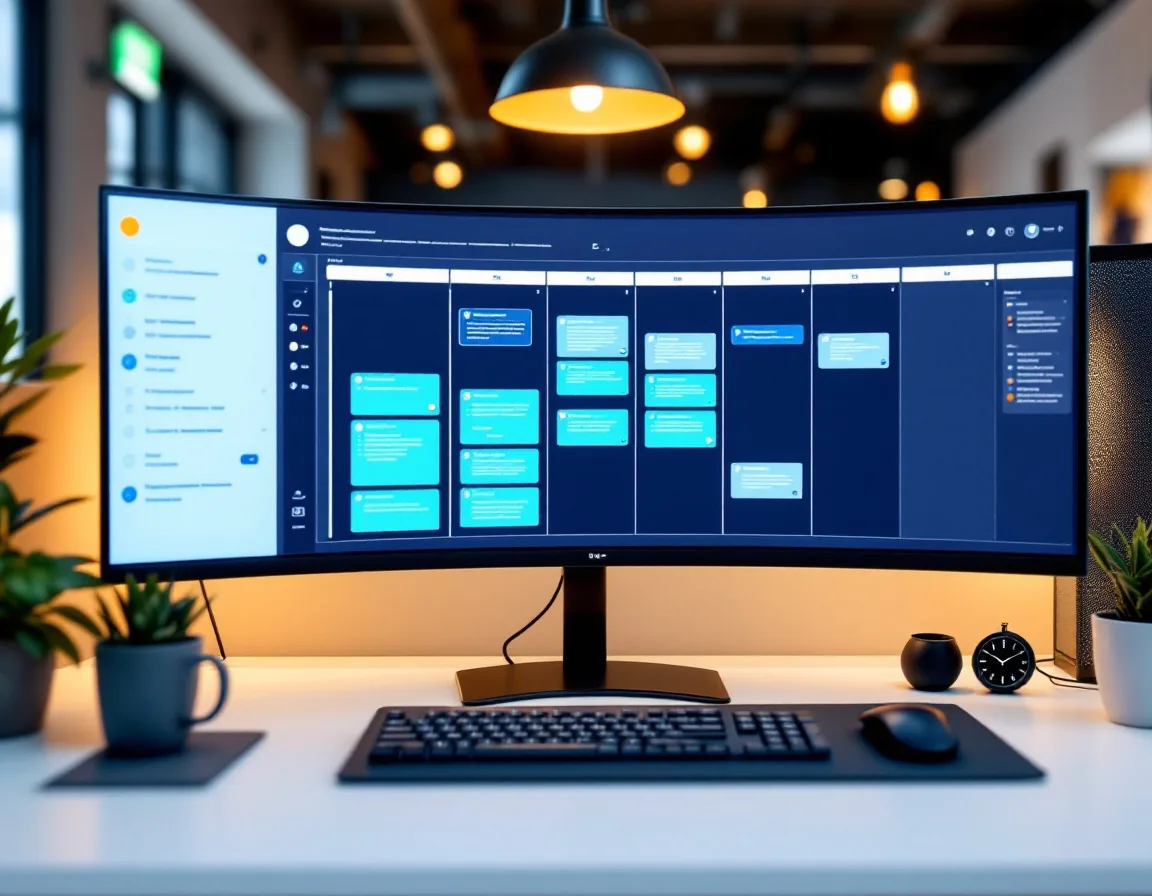
Board view (Kanban) for content pipelines. Each column is a status. Cards move left to right as work progresses. You can see at a glance what’s in draft, what’s in review, and what’s ready to publish.
Calendar view for editorial planning. All tasks with due dates show up on a calendar. Drag and drop to reschedule. This replaces a standalone content calendar tool entirely.
Timeline view for campaign planning. When you’re running a multi-week campaign with overlapping deliverables, the timeline shows dependencies, durations, and who’s doing what, all on one screen.
Pick one as your default and let your team settle in before adding more.
How Does ClickUp Brain Cut Marketing Admin in Half?
ClickUp Brain is an AI layer built into the platform. It’s not a chatbot bolted onto the side. It reads your actual workspace data: tasks, docs, comments, custom fields, time tracking history. So when you ask it something, it answers from your real work, not a generic training set.
The add-on runs about $5–7 per user per month on top of your ClickUp plan. For marketing teams, three features pay for themselves almost immediately.
Auto-Generating Tasks and Subtasks
Describe a campaign in plain language and Brain builds the task structure for you. Type something like “Create a task for launching a new blog series on LinkedIn marketing” and it generates the task with a full description and a list of subtasks. You review, tweak, and approve.
UpSys Consulting’s review of ClickUp AI found that this feature alone can turn hours of project setup into minutes. I’ve tested it. That’s not an exaggeration. Setting up a 12-task campaign workflow used to take me 25–30 minutes. Brain does it in under 2.
Automated Standups and Status Summaries
Ask Brain “What did the content team finish this week?” and it pulls a real answer from task activity. No more Monday morning meetings where everyone recounts what they did. No more digging through boards to compile a status update.
This replaces a meeting. Not in theory. In practice. I’ve dropped a standing 30-minute weekly sync from two client engagements because Brain generates the update automatically.
AI-Powered Content Drafts and Briefs
Brain can draft social media posts, email subject lines, project briefs, and meeting agendas from inside ClickUp. It’s not a replacement for a real copywriter. But for first drafts, brainstorming, and getting past a blank page, it works.
According to the HubSpot State of Marketing Report (2026), 93% of marketers already use automation for admin tasks like scheduling, note-taking, and documentation. Brain just puts that automation where the work already lives instead of making you switch to a separate AI tool.
What Makes ClickUp Better Than Asana or Monday for Marketing?
I’m going to give the honest answer here, not the affiliate answer.
All three tools work. If your team is already bought into Asana or Monday and it’s running well, I wouldn’t tell you to switch. Migration costs are real, and the best project management tool is the one your team actually uses.
That said, for B2B marketing teams starting fresh or outgrowing a basic setup, ClickUp wins on three things:
| Criteria | ClickUp | Asana | Monday.com |
|---|---|---|---|
| Free plan | Unlimited tasks, unlimited users | 15 users max, limited features | Up to 2 users only |
| Starting price (paid) | $7/user/month | $10.99/user/month | $9/seat/month |
| Native AI features | Brain (workspace-aware AI) | Asana Intelligence (limited) | Monday AI (moderate) |
| Custom fields + views | 15+ views, deep custom fields | Fewer views, less customization | Good views, moderate custom fields |
| Integrations | Largest library (native + Zapier) | Solid, fewer total | Solid, fewer total |
Source: G2 comparison data and ToolFinder’s 2026 marketing team comparison.
For a lean B2B team running marketing with 2–5 people, ClickUp’s free plan is hard to beat. You get unlimited tasks, Board/List/Calendar views, real-time chat, and 100 automations per month. You can run a full marketing automation system alongside ClickUp without spending a dollar on project management until you need advanced reporting or permissions.
The one knock on ClickUp is the learning curve. It’s more flexible than Asana, which means there are more decisions to make during setup. That’s why the framework I outlined above matters. If you know your structure before you open ClickUp, setup takes an afternoon. If you don’t, it takes weeks of reorganizing.
Who Shouldn’t Use ClickUp
If you’re a solo founder who just needs a to-do list, ClickUp is overkill. Use Todoist or Apple Reminders.
If your team refuses to adopt new tools and you’ve already failed at rolling out two project management platforms, the problem isn’t the tool. Fix the adoption issue first.
And if your marketing consists of one channel and a handful of tasks per week, a Notion database or even a Google Sheet will get the job done. You don’t need ClickUp until the volume and team size create real coordination problems.
The Bottom Line
Managing marketing tasks isn’t a tool problem. It’s a system problem.
Build the framework first. Strategy, Channels, Campaigns, Tasks. Four levels. Map your real work into those four buckets before you log into any platform.
Then build it in ClickUp. Spaces for departments. Folders for channels. Lists for projects. Tasks for the actual work. Assign everything to a person with a deadline. Use Board view for pipelines, Calendar view for scheduling, and let Brain handle the admin.
The companies I work with that run their marketing from a single system like this don’t produce more content than everyone else. They just don’t lose track of what they’re producing. And over time, that compounds into something their competitors can’t replicate with a bigger budget.
If you want a deeper look at how I build B2B marketing strategies and the full tool stack I use across clients, start there.
Common Questions About Managing Marketing Tasks
What’s the best free tool for managing marketing tasks?
ClickUp’s Free Forever plan is the strongest free option for marketing teams in 2026. Unlimited tasks, unlimited users, Board/List/Calendar views, and 100 automations per month. It outpaces Asana’s free plan (capped at 15 users) and Monday.com’s (capped at 2 seats). For a team of 2–5 marketers, the free plan covers everything you need until you hit enterprise reporting or permission requirements.
How do you prioritize marketing tasks when everything feels urgent?
Not everything is urgent. That feeling usually means there’s no system in place to sort what matters from what’s just loud. I use a simple rule: if the task is tied to a revenue-generating campaign with a live deadline, it’s high priority. If it’s maintenance or nice-to-have, it’s normal. Tag urgent only when something breaks or a hard external deadline exists. Flagging three things as urgent works. Flagging twelve does not.
How should a small marketing team structure their task management?
Keep it simple. One Space in ClickUp called “Marketing.” Two to four Folders matching the channels you’re actually running (Content, LinkedIn, Email). One List per active project inside each Folder. Every task gets one owner and one due date. That’s the whole system. You don’t need complex automations or 15 custom fields on day one. Start lean. Add complexity only when a specific workflow breaks.
Is ClickUp better than Asana for marketing teams?
For most B2B marketing teams, yes. ClickUp is more customizable, cheaper per user, and has a significantly more capable AI layer (Brain). Asana is easier to learn and faster to set up, so if your team values simplicity over flexibility, Asana still works well. The trade-off is feature depth versus ease of adoption.
How does ClickUp Brain help with marketing task management?
It reads your workspace and automates the busywork. Ask it to generate subtasks from a campaign description and it builds them in seconds. Ask it what your team completed last week and it pulls the answer from real task data. It can draft briefs, write meeting agendas, and flag blocked tasks. The $5–7/month per user add-on pays for itself if your team spends more than 30 minutes a week on status updates and task setup.
What’s the difference between ClickUp Spaces, Folders, and Lists?
Spaces are the top level. Think departments (“Marketing,” “Sales,” “Operations”). Folders sit inside Spaces and group related work by channel or function (“Content Marketing,” “Campaigns”). Lists live inside Folders and contain the actual tasks for a specific project or workflow (“Blog Production,” “Q3 Outreach”). Tasks are the individual to-do items inside Lists. The hierarchy goes Workspace, Space, Folder, List, Task, Subtask.