Last updated: October 24, 2026
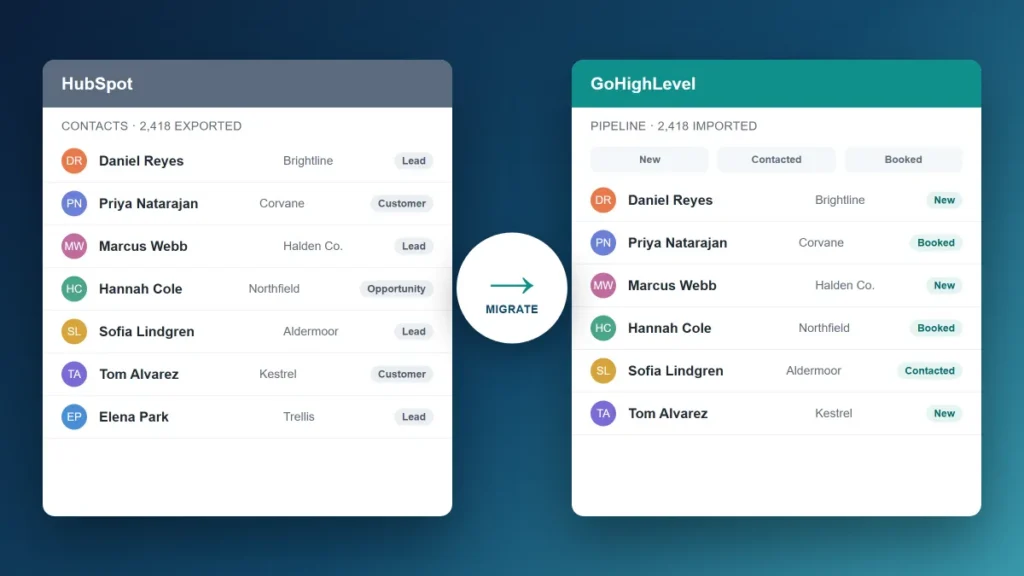
The Short Version: Migrating from HubSpot to GoHighLevel takes 2–4 weeks done carefully, or a weekend of messy work you’ll spend months cleaning up. The migration involves exporting contacts and deal data, recreating workflows in GHL’s automation builder, rebuilding email sequences, reconnecting forms and integrations, and running both systems in parallel for at least two weeks before fully cutting over. This is the step-by-step version based on what I’ve actually seen go wrong and right when moving B2B clients off HubSpot.
Migrating from HubSpot to GoHighLevel involves exporting contacts and pipeline data, rebuilding workflows and email sequences in GHL, reconnecting forms and integrations, and running a parallel period before cutover. Expect 2–4 weeks done carefully; rushing it creates data gaps that take months to find.
The case for switching is usually pretty clear by the time someone looks into it. HubSpot at full functionality runs $500–$1,200+ per month. GoHighLevel runs $97–$297 per month and does most of the same core work for B2B service businesses. The GHL vs. HubSpot comparison covers exactly where each platform wins and loses.
The migration itself is where teams get into trouble. HubSpot exports cleanly. GHL imports cleanly. The gap is everything in between — the workflows, sequences, forms, and integrations that don’t move automatically and have to be rebuilt.
Here’s the full sequence.
Step 1: Pre-Migration Audit (Do This Before You Touch Anything)
Before exporting a single file, document what you’re actually using in HubSpot. This step is skipped constantly and it’s where migration gaps come from.
Pull a list of every active workflow in HubSpot. For each one: what triggers it, what it does, which contacts are currently enrolled in it. You’ll need this to rebuild them accurately in GHL — and you’ll likely find several workflows that are broken, redundant, or haven’t been touched in two years. This is your chance to clean house, not just copy everything over.
Document your pipeline stages. Write down the exact stage names, definitions, and any automation tied to stage transitions. GHL’s pipeline is fully customizable, but you need to rebuild your stages intentionally rather than letting them default to something generic.
List every form on your website or landing pages that feeds into HubSpot. Each one needs to be either replaced with a GHL form or reconnected to GHL via Zapier or GHL’s native embed options after migration.
List every integration HubSpot connects to: your calendar, your CRM sync if any, your ad platforms, your sales tools. Each integration needs to be evaluated — some will connect natively to GHL, some will require Zapier, some may not be available yet.
Step 2: Export Everything From HubSpot
HubSpot’s export tools are thorough. Here’s what to pull:
Contacts export: From Contacts → All Contacts → Actions → Export. Include all properties — especially any custom properties you’ve built for deal stage tracking, lead scoring, or segmentation. Download as CSV.
Companies export: If you’re using HubSpot’s company records, export separately from the Companies list. GHL uses “Contact” records primarily but can be organized by tags and custom fields that replicate company-level data.
Deals export: From Deals → All Deals → Actions → Export. Include all pipeline stages and associated contacts. This is what you’ll use to rebuild your active pipeline in GHL after import.
Email templates: Open each email sequence and manually copy the content. HubSpot doesn’t export email sequence content in a format that directly imports to GHL — you’ll be pasting these into GHL’s email builder one by one. Prioritize your active sequences first.
Workflow documentation: HubSpot doesn’t export workflows in a usable format either. Screenshot or document each active workflow manually from the Workflows tool. If you have a lot, focus on the ones with active contacts enrolled first.
Step 3: Set Up GoHighLevel Before Importing Anything
The import comes after setup, not before. A common mistake is importing contacts into a blank GHL account before the pipeline, custom fields, and tags are configured. Then the contact data doesn’t map correctly and you’re cleaning it up for weeks.
Configure in this order before touching the import:
Pipeline stages. In GHL → Pipelines, create your pipeline with the same stage names and logic you documented in Step 1. Add any custom probability values. Do this before importing deals.
Custom fields. Any custom properties from HubSpot that matter for your sales process need to be recreated as custom fields in GHL → Settings → Custom Fields. Match the field names exactly to what’s in your export CSV — this makes mapping during import easier.
Tags. Define your tagging structure. GHL uses tags heavily for segmentation, workflow triggers, and list management. Map your HubSpot contact lists and segments to GHL tags before importing contacts.
Email domain and authentication. Connect your sending domain, configure DKIM and DMARC, and verify before any sequences go live. GHL’s email settings are under Settings → Email Services. Don’t skip this — sequences that go out from an unverified domain will have deliverability problems from day one.
Step 4: Import Contacts
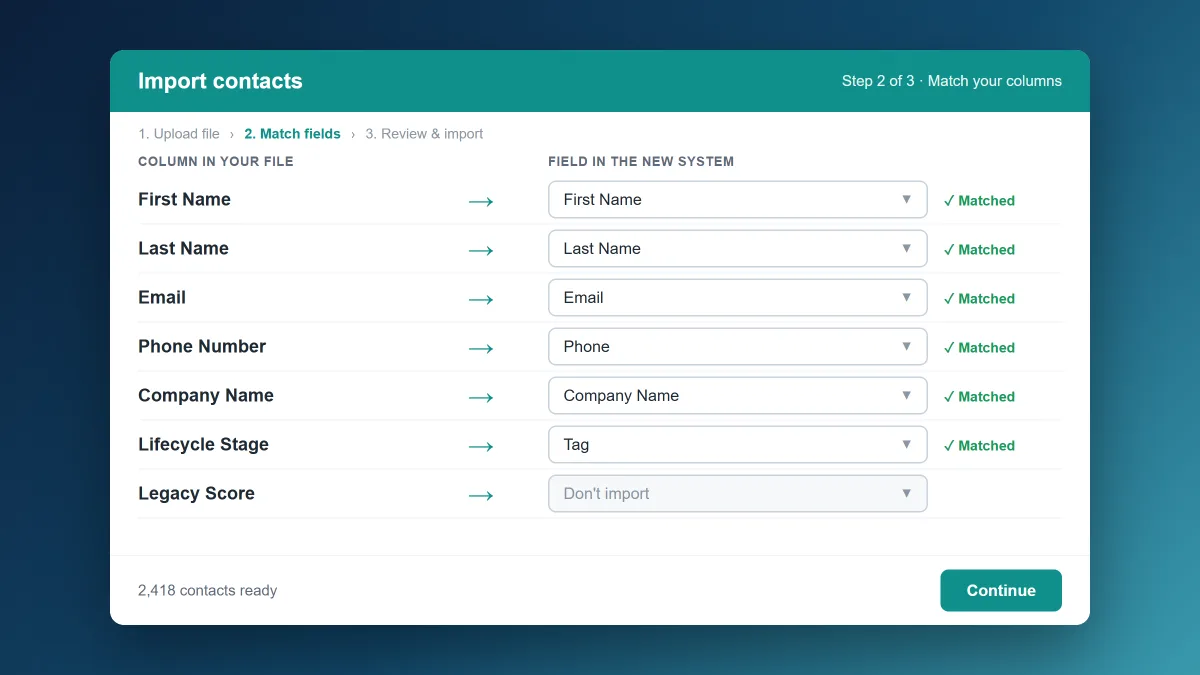
With your GHL account configured, import your HubSpot contacts export via GHL → Contacts → Import. GHL’s importer lets you map CSV columns to GHL contact fields — this is where having matching custom field names pays off. Map your HubSpot properties to the corresponding GHL fields, assign a default tag (something like “hubspot-import” so you can identify and audit the batch), and run the import.
After import, spot-check 20–30 contacts manually. Confirm that key properties mapped correctly, that custom field data populated, and that no major data class (phone numbers, company names, deal stages) got dropped or mangled. Fix mapping errors before they compound across thousands of records.
Companies from HubSpot become tag-based groupings in GHL. If company-level data matters for your pipeline, add a custom field for company name and a tag per company account, then tag contacts accordingly after import.
Step 5: Rebuild Workflows in GHL
This is the most time-intensive step. GHL’s workflow builder is capable of replicating everything HubSpot does — the logic is just expressed differently.
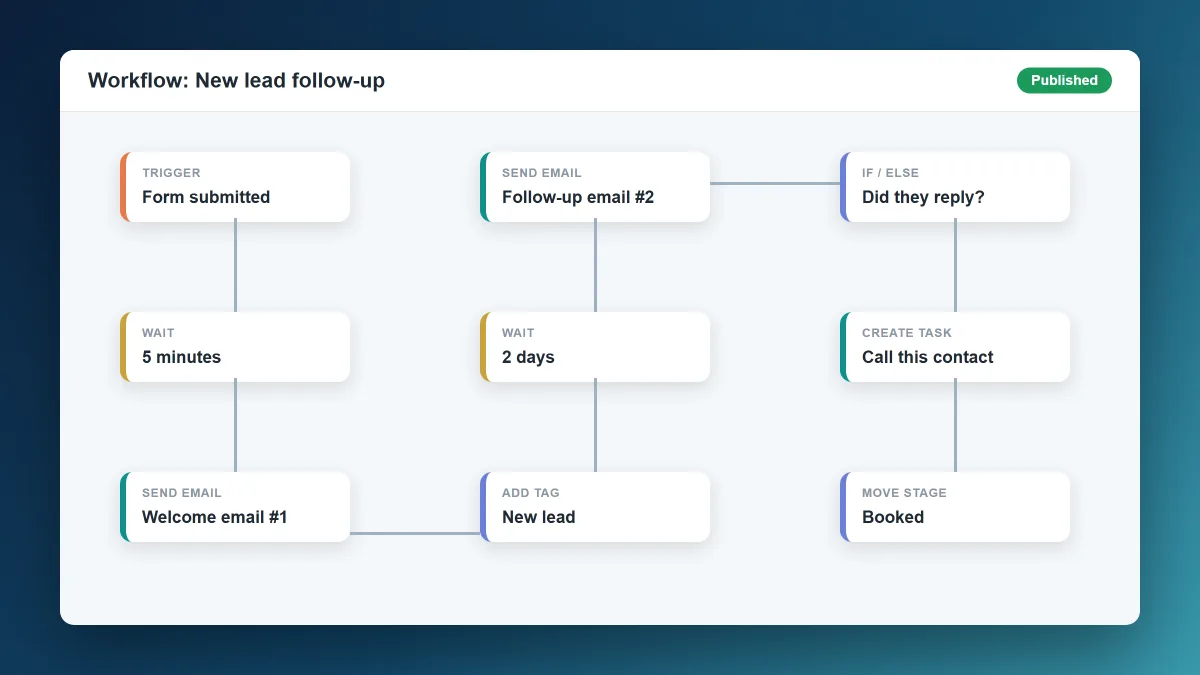
Work through your documented workflows from Step 1, starting with the highest-priority ones. For each workflow, build the GHL equivalent: set the trigger (contact added to pipeline stage, form submitted, tag applied, etc.), build the action sequence (wait step, send email, send SMS, create task, update field), and set the exit conditions.
A few GHL workflow nuances that trip up HubSpot users:
- GHL workflows are trigger-based — a contact enters when a trigger fires, not when you manually enroll them. Structure your triggers carefully to avoid contacts entering workflows they shouldn’t
- GHL uses “if/else” branches rather than HubSpot’s “re-enrollment” and “goal” logic. Map your HubSpot conditional branching to GHL’s branch structure during rebuild
- Email steps in GHL workflows reference email templates. Build your email templates in Marketing → Templates before building workflows — you can’t reference a template that doesn’t exist yet
The GHL automation tutorial walks through building your first workflow from scratch — worth reading before rebuilding complex sequences.
Step 6: Rebuild Email Sequences and Templates
Email content from HubSpot sequences needs to be pasted into GHL’s email builder. Open each HubSpot sequence email, copy the content, and build the equivalent in GHL → Marketing → Emails → Create.
While you’re rebuilding: update any outdated content. If a sequence references a pricing page that’s changed or a case study that’s been updated, fix it during the rebuild rather than migrating old content. This is also a good time to consolidate — if you had six slightly different follow-up sequences in HubSpot, consider whether three well-built GHL sequences would do the same work.
Step 7: Reconnect Forms and Integrations
Every form that was feeding HubSpot needs to feed GHL instead. You have three options:
Replace with GHL forms. Remove the HubSpot form embed from your website and embed a GHL form instead. GHL generates embed codes you paste into your site. Cleanest option — data goes directly into GHL with no middleware.
Use Zapier to pass form submissions to GHL. If you’re using a form tool (Gravity Forms, Typeform, Webflow forms) you want to keep, set up a Zap that sends new submissions to GHL as new contacts. More moving parts, but preserves your existing form setup.
Use GHL’s native integrations. GHL has native integrations with several common tools. Check whether your integration exists natively before building a Zap — native connections are more reliable.
Ad integrations (Google Ads, Meta) can be reconnected under GHL → Settings → Integrations. Calendar integration (for booking workflows) is under Settings → Calendars. Reconnect each one after the main import is complete.
Step 8: Run Both Systems in Parallel
Don’t cancel HubSpot the day you finish the GHL import. Run both systems in parallel for at least two weeks — longer if you have complex sequences with contacts mid-enrollment.
During parallel operation: route new leads to GHL, keep existing enrolled contacts finishing their HubSpot sequences rather than abruptly moving them, and monitor both systems daily for anything falling through the cracks. After two weeks of clean parallel operation — no missed leads, no broken automations, active pipeline correctly reflected in GHL — you’re ready for full cutover.
Step 9: Full Cutover and HubSpot Cancellation
When parallel operation confirms GHL is running cleanly, cut over completely. Update any remaining form embeds. Redirect any HubSpot-specific links (meeting links, landing pages, tracking URLs). Archive your HubSpot account rather than deleting it immediately — HubSpot allows you to pause billing and keep a read-only archive for 90 days. Use that window to confirm nothing was missed before the account expires.
Download and save your HubSpot data exports permanently. Contact records, deal history, and workflow documentation are worth keeping as a reference even after you’ve fully moved to GHL.
Common Migration Mistakes and How to Avoid Them
| Mistake | What Happens | How to Avoid |
|---|---|---|
| Importing before configuring custom fields | Custom property data drops or maps to wrong fields | Build all custom fields in GHL before importing |
| Skipping the workflow audit | Broken or redundant workflows get rebuilt unnecessarily | Document every active workflow before starting |
| Not configuring email authentication first | Sequences go out with deliverability problems from day one | Set up DKIM and domain verification before any emails send |
| Canceling HubSpot immediately after import | No fallback if GHL has issues in the first weeks | Run parallel for at least two weeks before canceling |
| Moving contacts mid-enrollment in HubSpot sequences | Contacts get dropped from sequences or double-contacted | Let existing enrollments finish in HubSpot; route new leads to GHL |
Realistic Timeline
For a B2B company with a moderate HubSpot setup (500–5,000 contacts, 5–15 active workflows, a few forms and integrations):
- Week 1: Pre-migration audit, GHL configuration, exporting HubSpot data
- Week 2: Contact import, workflow rebuilds, email template recreation
- Week 3: Form reconnection, integration setup, testing and QA
- Week 4–5: Parallel operation, final verification
- After Week 5: Full cutover, HubSpot cancellation
Rushing to two weeks is possible. It usually means spending week six and seven fixing things that a careful migration would have caught.
The Bottom Line
Moving from HubSpot to GoHighLevel is a legitimate cost optimization for most B2B service businesses — and the migration is straightforward if you do it in order. Audit first, configure GHL before importing, rebuild workflows before activating them, run parallel before canceling.
If you’re still evaluating whether the switch makes sense for your specific setup, the GHL vs. HubSpot comparison covers the tradeoffs in detail. And if you want help scoping a migration for your company, let’s talk.
Ready to get started? There’s a GoHighLevel 14-day free trial here (affiliate link) — you can start building your GHL setup during the parallel period before committing.
HubSpot to GoHighLevel Migration Questions
Does GoHighLevel have a native HubSpot import?
Not natively — GHL imports contacts from CSV files, which is what HubSpot exports. The import process is straightforward; the work is in exporting the right data from HubSpot, mapping fields correctly during import, and rebuilding workflows and email sequences separately. There’s no one-click migration tool that moves everything automatically.
Will I lose my HubSpot deal history when migrating?
Not if you export it before canceling. HubSpot exports deal records including associated contacts, stage history, and custom properties. Import the deal data into GHL’s pipeline after your contact import is complete. Historical email activity and timeline notes from HubSpot won’t transfer — that data stays in HubSpot. Keep a read-only HubSpot archive for 90 days after migration so you can reference historical records if needed.
How long does a HubSpot to GoHighLevel migration take?
For a typical B2B company with 500–5,000 contacts and a moderate automation setup, expect 4–5 weeks done carefully: one week for audit and configuration, one to two weeks for rebuilding workflows and sequences, one week for testing, and two weeks of parallel operation before full cutover. Doing it in a rushed weekend is possible and usually creates cleanup work that takes longer than doing it right the first time.
What happens to contacts currently in HubSpot workflows during migration?
Let them finish their current enrollment in HubSpot before moving them to GHL sequences. Abruptly removing contacts from HubSpot sequences mid-enrollment either drops them from the sequence entirely or requires manually re-enrolling them in the GHL equivalent. Route all new leads to GHL from the moment you start the migration, and let existing HubSpot enrollments run their course.
Do I need a developer to migrate from HubSpot to GoHighLevel?
Not for the core migration. The audit, export, GHL configuration, contact import, and workflow rebuild are all non-technical work that a competent marketing operations person can handle. You may need developer help to swap out embedded forms on your website and to set up any custom integrations that aren’t available natively in GHL. Most B2B service businesses can complete the migration without engineering resources.