

Last updated: May 18, 2026
Note: Some links are affiliate links. I only recommend tools I actually use and genuinely recommend. Never at any extra cost to you.
The Short Version: Riverside Pro at $29/month is the entry-level paid plan and the right pick for most B2B founders, agency owners, and service businesses producing video. Every AI feature is bundled in. I’ve been using it for 2+ years across founder video, client testimonials, podcasts, training videos, and explainer content. I dropped my Opus Clips subscription because Riverside’s Magic Clips replaced it. The only buyers who should pick something else are heavy post-production users (Descript still wins there) and anyone who hasn’t decided video belongs in their business yet.
Riverside is a recording and video editing platform starting at $29/month on the entry-level paid plan. It records 4K video locally on each participant’s device, then handles editing, AI-powered short clips (Magic Clips), transcription, voice enhancement, eye contact correction, and shareable links from one place. For B2B founders and service businesses building a video motion, it’s the strongest single-tool pick in 2026.
I’ve been using Riverside for 2+ years across founder video, client testimonials, podcasts, training videos, and explainer content. It’s one of my top marketing tools for B2B in 2026, and the one that’s quietly consolidated the most of my workflow.
I’m on the Pro plan at $29/month. It’s the entry-level paid tier, and every AI feature is bundled into it. There’s no upgrade tax to unlock the good stuff.
Who it’s for: B2B founders building a personal brand, agency owners producing client content, service businesses recording testimonials and sales-page video, and anyone running a podcast or interview series who doesn’t want to glue four tools together.
Who it isn’t for: people who need deep post-production text editing as their main job (Descript still wins that fight), or anyone who hasn’t decided video is part of their motion yet. And no tool fixes that.
Bottom line. I’d still pay for Riverside even if my affiliate link got revoked tomorrow. Most of my team’s recordings, including the ones we capture elsewhere, end up imported into Riverside for editing and sharing. That’s revealed preference.
What Riverside Actually Does
Riverside is a recording and video editing platform. You can record from a browser, a desktop app, or a phone. It captures separately on each participant’s device, then uploads the high-quality files after the session ends. That solves the “Zoom audio sounds like a phone call” problem most B2B teams run into when they try to repurpose meeting recordings.
It also does 4K video recording per participant, unlimited transcriptions, AI-powered text-based editing, automatic short-form clips (Magic Clips) for LinkedIn and YouTube Shorts, voice enhancement (Magic Audio), eye contact correction, teleprompter mode, and shareable links so you can hand off the final file without sending a 4 GB email attachment.
It’s marketed at podcasters. The real use case for B2B founders and service businesses is broader, which is the case I’m going to make.
The Honest Take: Why I’d Pay for Riverside Even Without the Affiliate Link
The strongest signal I can give you is this. When my team records video somewhere else, like a Zoom call we want to repurpose, a client testimonial captured on someone’s phone, or a quick founder clip from a conference, we import the file into Riverside. Not because we have to. Because the editor is that much easier to use than the other tools we’ve tried.
If a tool earns import-from-elsewhere behavior, that’s not marketing copy. That’s a workflow choice you make when no one’s watching.
Riverside has consolidated more of my video workflow than any other tool in my stack. That includes one tool I had my own affiliate for, which I dropped to use Riverside’s built-in feature instead. I’ll get to that in a minute.
What 2+ Years of Riverside Use Actually Looks Like
Here’s what I actually record on it, across my own work and client work:
- Founder video for my own personal brand and LinkedIn presence. If you’re building a founder content strategy, this is the tool that makes weekly recording sustainable.
- CEO and founder videos for B2B clients, recorded before we hand the files to a video editor for finishing
- Client testimonials for service business sales pages
- Customer interviews for case study content
- Podcasts, both mine and clients’
- Training videos for onboarding new clients
- Explainer videos for service pages
- Tutorials when a client launches a new feature or process
Most Riverside reviews online are written by podcasters reviewing podcasting. The actual use surface is wider than that, and most of those use cases are higher-margin than podcasting itself. Customer testimonials on a sales page move money faster than another episode of a niche podcast does.
If you’re running a B2B company and you’ve been telling yourself “we should be doing more video,” the testimonials and founder content are usually the highest-leverage starting point. Riverside makes both easy.
What $29 Actually Gets You (And Why That Matters)
Riverside’s Pro plan at $29/month is the entry-level paid tier. There’s no cheaper Standard tier hiding underneath. A lot of older reviews still cite a $19/month plan that no longer exists.
So what’s actually in the box?
- Up to 4K video quality, 48kHz audio
- 15 hours of multi-track recordings per month
- Unlimited single-track recording
- Teleprompter for the host
- No watermark
- Unlimited text-based editing
- AI editing and repurposing agent
- AI tools: Magic Audio (voice enhancement), eye contact correction, unlimited transcriptions, automatic silence and filler-word removal
- Magic Clips and show notes
This is the whole point. Most software reviews scatter features across “you’ll need to upgrade for X.” With Riverside, $29 gets you the AI features other tools sell as upgrade tiers. Which is what makes the consolidation argument work.
The AI Features That Actually Matter (And the Tool I Dropped Because of Them)

I had a separate subscription to Opus Clips for a long time. Opus turns long-form video into short clips with captions. It’s a good tool. It’s also redundant if you’re already on Riverside Pro.
Riverside’s Magic Clips does the same thing. AI scans your recording, identifies the most engaging moments, and produces short-form clips for LinkedIn, YouTube Shorts, and Instagram Reels. It’s bundled in Pro. I canceled my Opus Clips subscription and haven’t missed it.
For full disclosure. I have an affiliate link for Opus Clips too. I’m telling you to use the bundled Riverside feature instead. That’s a hit to my own affiliate revenue. But it’s the right answer.
The other AI features I actually use:
Magic Audio. Voice enhancement. I don’t love the sound of my own voice. Magic Audio cleans up tone and balance without making me sound like a synth. Worth it on every recording.
Eye contact correction. When I’m reading from the teleprompter and my eyes drift toward the script, AI corrects the gaze so I’m looking at the camera. One of those features I didn’t think I needed until I saw the before-and-after.
Silence and filler word removal. I delete “um” and “you know” by clicking a button. No editing skills required.
Unlimited transcriptions. Riverside transcribes every recording automatically. I use the transcripts for blog posts, LinkedIn captions, newsletter content, and YouTube descriptions. One recording, four content assets.
Text-based editing. You edit the transcript like a Word doc. Delete a word, the video edits itself. Add a word, AI fills in the gap. This is what makes Riverside accessible to people who have never edited video before.
The Workflow I Run Across Founder + Client Video
Here’s the actual sequence we use. If you already have a B2B content workflow in place, slot Riverside into the recording-and-editing layer.
- Script the recording. Either I write it, my team writes it, or AI drafts it and I edit. Recording without a script burns time. Even casual founder content gets at least a bullet outline.
- Record. Riverside on a laptop with a webcam, Riverside on iPhone with the rear camera, or Riverside on desktop pulling from an external camera. For some recordings, we capture elsewhere and import into Riverside.
- First-pass edit. This is the part where most founders get stuck. My recommendation: edit your first 2 or 3 recordings yourself, even if you eventually hand it to an editor. You learn how to record better when you’ve felt the pain of editing bad takes. Riverside’s text-based editor makes the learning curve survivable.
- AI cleanup. Magic Audio, eye contact correction, silence removal. Three clicks.
- Hand to editor for finishing. My team’s video editor takes the cleaned-up file and does the brand work: lower thirds, intro/outro, transitions, captions. Some founders skip this step and ship the AI-cleaned version. That’s fine for LinkedIn. For YouTube and sales-page video, the editor finish is worth it.
- Share via Riverside link. This is the part most reviews skip. Sending a 4 GB video file over email is broken. Riverside generates a shareable link, and the file size problem disappears.
The Camera Setup Riverside Doesn’t Document
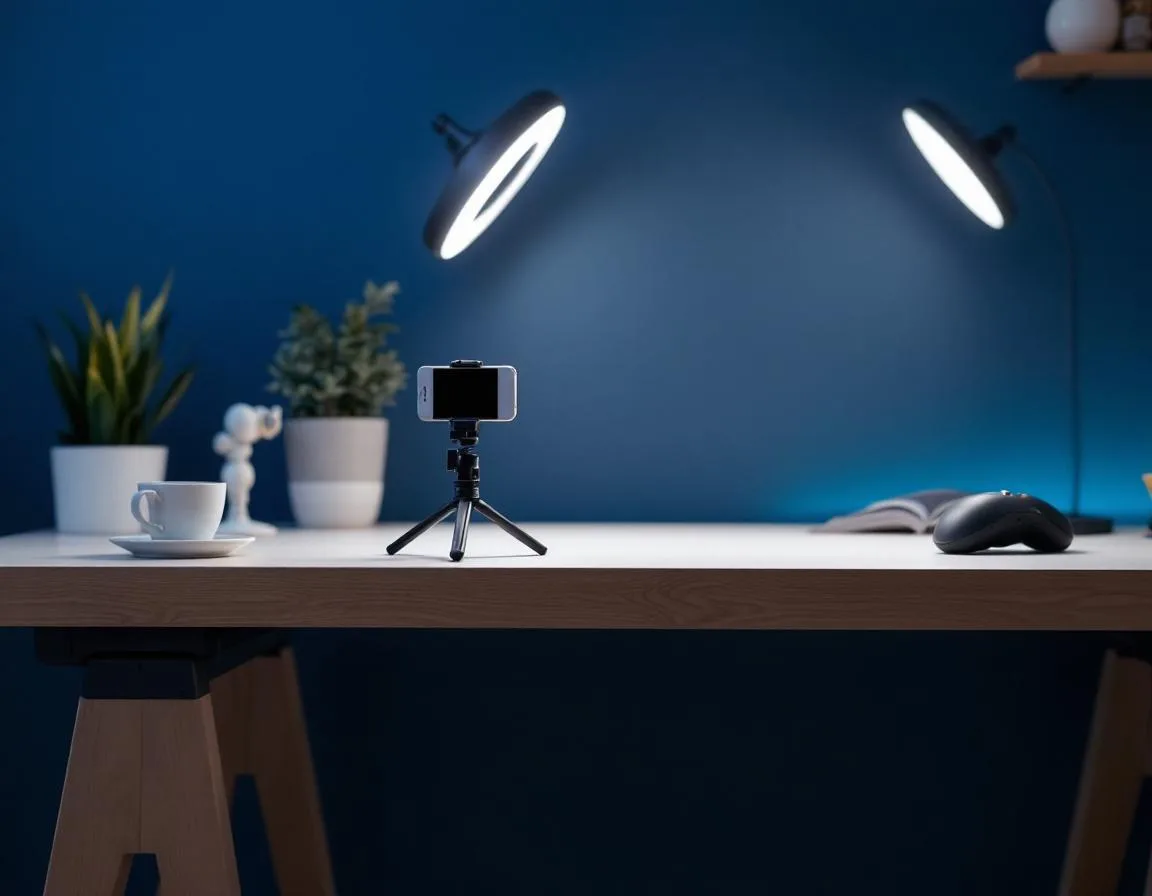
Riverside has plenty of content on lighting. They’ve under-documented camera positioning, especially on mobile. Here’s what works for me:
If you’re recording on iPhone:
- Use a mini desk tripod (the kind that sits on your desk and holds your phone). Inexpensive on Amazon.
- Use the rear camera, not the selfie camera. Better quality.
- Use cinematic mode on iPhone 13 or newer.
- Position the lens at eye level. If you have to look down at the phone, your forehead becomes the focal point and your eyes look distracted.
- Center yourself in the frame with your shoulders and torso visible. Cropping at the neck looks awkward.
If you’re recording on a laptop or external camera:
- Same eye-level rule. Stack your laptop on books if you have to.
- Position the camera so the lens is at the level of your eyes, not above or below.
- External cameras (webcam, DSLR, or a phone running the Riverside app as the camera) almost always produce better video than a built-in laptop camera.
One teleprompter caveat. If you’re using the teleprompter feature, raise it to eye level. The default position on most setups puts the prompter slightly below the camera, which makes your eyes drift downward when you’re reading. That breaks the eye contact the AI is trying to fix later. Don’t make the AI work harder than it has to.
What Riverside Doesn’t Tell You Out Loud
It’s not the fastest. Upload after a recording takes time. Export after an edit takes time. The editor can lag on longer projects. I’ve never lost work, but I’ve built coffee breaks into my workflow around upload time. If you’re expecting CapCut-style instant rendering, manage that expectation. Independent reviews like Cleanvoice’s 2026 take flag the same upload-speed friction, so it’s not just me.
The teleprompter encourages downward eye drift. Mentioned above, repeating because it matters. Eye level is non-negotiable for talking-head video.
There’s a learning curve on advanced editing. The text-based editor is intuitive. Layout switching (multi-cam, picture-in-picture, custom positioning) takes a couple of recordings to get comfortable with. Once it clicks, it’s fast.
Magic Clips isn’t psychic. It picks moments based on speaker energy and keywords. It usually nails it. But sometimes it misses the actual best moment because that moment didn’t sound exciting enough. Review the clips before you publish. Don’t just auto-post.
Riverside vs Descript, Loom, and Zoom
Riverside vs Descript. I used Descript before Riverside. Descript still wins for deep post-production text editing. If your job is to take long-form video and surgically restructure it, Descript’s editor is the best in the category. Riverside wins for the all-in-one workflow: record, edit, clip, share. Many creators record on Riverside and edit in Descript. Most B2B founders will get more value from Riverside if they have to pick one.
Riverside vs Loom. Different category. Loom is async screen-share. You record your screen and your face, send a link, the recipient watches at 1.5x. It’s a communication tool. Riverside is a production tool. Use Loom for “here’s what I want you to do this week.” Use Riverside for content you want on your website or social channels.
Riverside vs Zoom or Teams. I record on Zoom or Teams when the meeting is the meeting. I don’t record on either of them when the meeting is content. The quality is meaningfully worse: compressed audio, lower-resolution video, no separate participant tracks. If you’re going to repurpose video, record it on a tool built for repurposing.
If you’re also evaluating AI avatar tools instead of recording yourself, my HeyGen review covers when that path makes sense and when it doesn’t.
When Riverside Is Wrong for You
This is the section most affiliate reviews skip. I won’t.
So who shouldn’t buy this?
You’re a heavy post-production user. If your job involves stitching multiple sources into a complex final edit with heavy layering, Descript or a full editor like Premiere or DaVinci will serve you better.
You haven’t decided video is part of your business yet. No tool fixes “I should probably be on camera.” Get clear on whether you want a founder video presence first. Then buy the tool.
You only need live streaming. Riverside has a Live plan, but if multistreaming to 6 platforms simultaneously is your only use case, look at StreamYard or Restream first.
You’re committed to a current podcast tool you love. If you’re happy on Squadcast or Zencastr and your workflow ships content, don’t switch for the sake of switching. Tool fatigue is a real cost.
The 30-Day Riverside Evaluation Plan
On the fence? Here’s how I’d test it.
Days 1 to 7. Sign up for the free trial. Record one founder video and one client testimonial or interview. Run them through Magic Audio and the AI editor.
Days 8 to 14. Use Magic Clips to generate 3 to 5 short-form clips from each recording. Post one to LinkedIn. Track the engagement.
Days 15 to 21. Compare to your current workflow. How long did the same content take you before? What was the quality difference? What did you cancel or stop using?
Days 22 to 30. Decide before you commit annually. The yearly price is the real number. Monthly billing is more expensive. Make sure the workflow holds up before you lock in.
My Pick for B2B Founders and Service Businesses
If you’re a B2B founder building a personal brand on LinkedIn, an agency owner producing client video, or a service business that needs testimonials and sales-page video, Riverside Pro at $29/month is my pick. The bundling of AI features at the entry-level paid tier is the strongest single argument. The fact that I canceled my Opus Clips affiliate to use Riverside’s bundled feature instead is the strongest credibility move I can make.
If you’ve been telling yourself you should be producing more video and the editing workflow is what’s blocking you, this is the tool that unblocks it.
Common Questions
Is Riverside worth it for B2B founders without a podcast?
Yes. Most of my Riverside use is non-podcast: founder video, customer testimonials, training, explainers, and tutorials. The all-in-one workflow is the value, not the podcast-specific features.
What’s the difference between Pro and the higher tiers?
Pro at $29 is the entry-level paid plan and covers record + edit + clip + share. Live at $39 adds multistreaming to YouTube, LinkedIn, Instagram, X, and Twitch. Webinar at $99 adds webinar hosting up to 100 registrants with registration and follow-up. Business is custom pricing for enterprise scale. For most B2B founders and agencies, Pro is enough.
Does Riverside replace Descript?
For most B2B founders, yes. If your job is deep post-production text editing, Descript still wins. For all-in-one record-edit-clip-share workflow, Riverside is the better single tool.
Is the iPhone app good enough to skip a webcam?
For founder content and testimonials, yes, if you use the rear camera, a mini tripod, and eye-level positioning. The iPhone produces better video than most built-in laptop webcams.
How does Magic Clips compare to Opus Clips?
In my workflow, Magic Clips replaces Opus Clips. Both produce AI-generated short clips with captions. Magic Clips is bundled in Riverside Pro at $29/month, which means no separate subscription.
The Bottom Line
Most B2B founders don’t have a video problem. They have a tooling problem stacked on top of an editing problem. Riverside collapses both into one $29/month workflow that an entry-level operator can run. That’s the buying case.
Test it for 30 days on one founder video and one customer testimonial. If the workflow holds up, lock in the annual plan. If it doesn’t, you’re out a month and you’ve learned something specific about how you want to produce video.
If you’re trying to figure out whether video should be part of your marketing motion at all (a different question from “which tool”), start with the free 6-Week B2B Growth Sprint and build the foundation first.